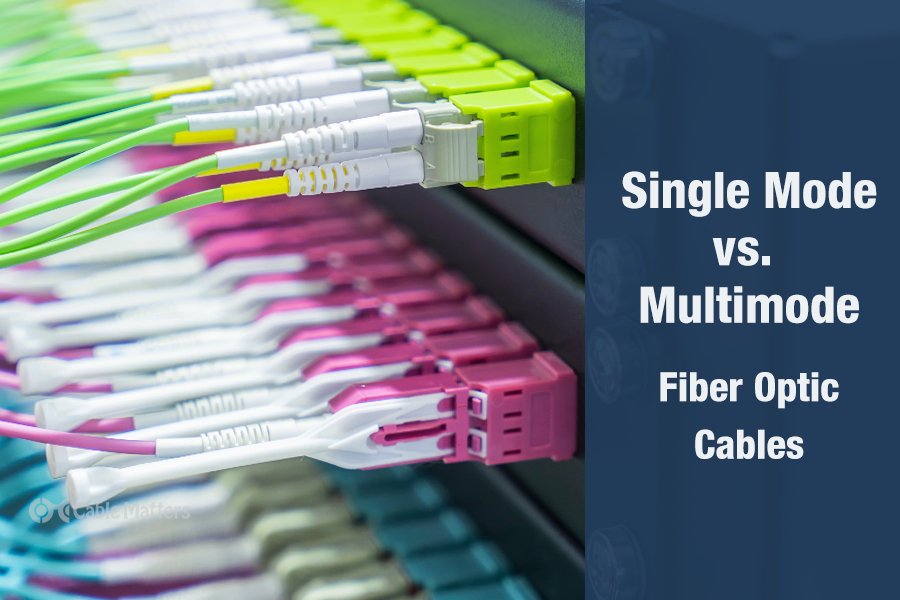
There are two main types of fiber optic cables: single mode and multimode. Although they can do the same job in some instances, the different construction methods make each of them better suited to certain tasks and budgets. That makes picking between single mode and multimode fiber optic cables an important consideration when it comes to setting up your network.
In a nutshell, single mode cables are better for long-distance cable runs and when signal integrity is of paramount importance. They are typically more expensive than multimode cables, though, and there are different types of single and multimode fiber optic cables to consider, making the single mode vs. multimode fiber head-to-head a little more complicated.
To help you decide on the type of cable you need for your project, here’s everything you need to know about single mode and multimode fiber optic cables.
What is Single Mode and What is Multimode?
Single mode and multimode fiber optic cables are two different types of fiber optic cable aimed at different use cases. Single mode cables are typically made with a single strand of glass at their core, leading to a narrower core of the cabling, and more robust signal integrity over greater distances. They can be further divided into OS1 and OS2 cables, which are designed for indoor and outdoor uses, respectively, with OS2 cables offering greater cable lengths and bandwidth.
Multimode cables have multiple glass strands in the core, making them larger and more versatile since they can handle multiple data streams at a time. However, that broader core means there’s more light refraction throughout the cable, weakening the signal faster, and making multimode cables less suitable for longer runs. They too are divided into more cable types: OM1, OM2, OM3, OM4, and OM5.
OM1 and OM2 cables are the least expensive but offer the least performance of multimode fiber optic cables. OM3, OM4, and OM5 are progressively more capable, closing the gap between single mode and multimode fiber.
Single Mode vs. Multimode Fiber: Key Differences
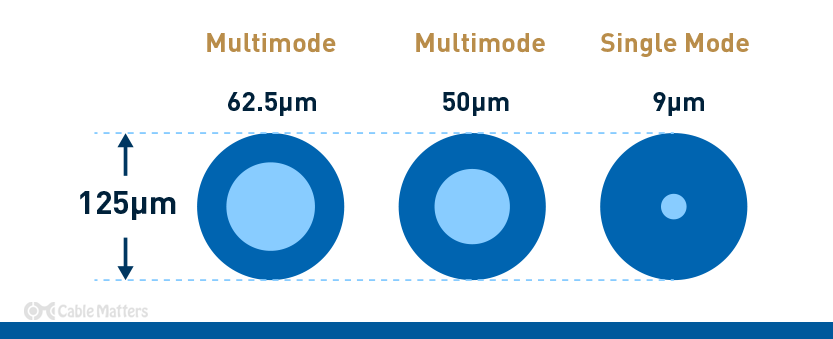
The key physical difference when comparing single mode vs multimode fiber cables is the core. Where single mode cables have a single glass strand at their core, measuring around 9µm, the multiple strands used to craft a multimode cable’s core measure 62.5µm or 50µm. This physical disparity is what leads to the performance and use case differences for each cable type.
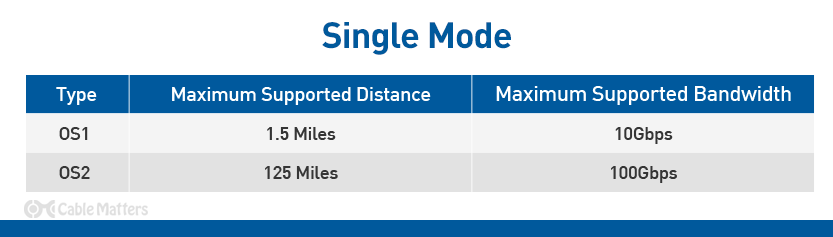
Thanks to the focused signal of single mode cables, they can deliver a signal over multiple miles without the need to repeat or amplify it. OS1 cables can carry a signal up to around a mile and a half, while OS2 cables can reach up to 125 miles. Since they’re designed with outdoor use in mind, and to ensure no problems arise over that expansive length, OS2 single mode fiber cables are also built with a unique spiral core design, with additional semi-rigid tubing around the core that lets the cable flex without putting any tension on the glass fibers at its core.
Single mode cables are typically rated for between 1 and 10 Gigabits per second over these incredible lengths. It’s theoretically possible that they can run at much higher bandwidths, but typical specifications limit them to 10 Gbps at the top end. Single mode cables, specifically OS1 cables, are commonly used in campus data networks, telecommunication networks, and TV transmission networks. OS2 cables are also used in these cases, as well as an overarching backhaul network.
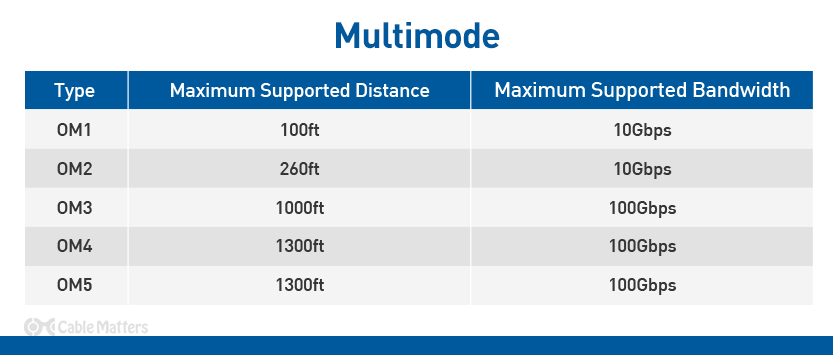
In contrast, multimode cables can only manage much shorter runs of a single cable before amplification is necessary. Legacy OM1 cables are limited to just 100ft, while OM2 provides a higher quality connection and can stretch to 260ft. Their bandwidth is relatively comparable to single mode cables, delivering between 1Gbps and 10 Gbps depending on cable length.
OM3 multimode fiber optic cables can manage longer cable runs at up to 1,000ft, while OM4 and OM5 are capable of 1,300ft cable runs at up to 10 Gbps. All three are also capable of transmitting at a much higher bandwidth: up to 100 Gbps in some cases. However, offering such throughput requires a shorter cable run, with even the most capable OM4 and OM5 cables limited to just 500ft at the maximum bandwidth.
OM1 and OM2 multimode cables can, in some cases, be driven by LED light rather than lasers, which limits their range and performance, as well as their cost. However, OM2 cables are also available with laser optimizations which improve their range and available bandwidth.
To help differentiate between all of these similar, but quite distinct cable types, they are usually given a unique color band. OM1 multimode fiber cables are given orange or grey outer jackets. OM2 cables are orange, while OM3 are often given a cyan or aqua jacket. OM4 cables are given a purple or aqua outer jacket, while OM5 cables are typically lime green.
Both OS1 and OS2 single mode cables are given yellow jackets, which helps them stand out from their multimode contemporaries.
The final difference in the single mode vs. multimode fiber debate is cost. OS1 and OS2 single mode cables tend to be the most expensive, while multimode cables as a whole are cheaper. However, the pricing difference there is more distinct, with OM5 cables getting close to OS2 cable pricing, while OM1 is far more affordable.
Is Multimode Better?
In the single mode vs. multimode fiber debate, there is not one cable that’s the best, but there are some that are better suited to certain situations.
If you need to run fiber optic cable over a vast distance, there’s no argument that single mode OS2 fiber cables are by far the best tool for the job. But if you’re looking to run shorter cables that are just a few hundred feet in length, multimode cables have the potential to not only offer the same ultra-high bandwidth over shorter distances but do so for cheaper, too.
It’s important not to lump all multimode fiber cables together, though, as there are some stark differences between OM1 and OM5 cables, and subtler, but still present differences between the other multimode cable types. Only OM3, OM4, and OM5 cables can offer the same 40Gbps, and 100Gbps bandwidth as OS2 cables, even if it’s over much shorter distances.
With that in mind, it can often be better to use OM4 or OM5 cables instead of OS1 cables when running shorter cable lengths in indoor locations, if given the choice. In that case, multimode fiber cables could be considered “better”. However, there is no replacing the bandwidth and signal robustness of the OS2 single mode fiber optic cable type.
Choosing the Right Fiber Optic Cable
The main consideration when choosing a fiber optic cable is deciding which type you opt for. Single mode vs. multimode fiber cable is a debate you can answer by considering the cable length(s) required as well as the necessary bandwidth. If you are happy with a maximum of 10Gbps bandwidth at lengths under two miles, then you have the choice of OS1 or OM1 and OM2 fiber optic cables. For greater bandwidth over shorter distances, OM3, OM4, and OM5 are valid options, and will likely give you the most cost-effective solution to your networking problem.
If you’re looking for multiple miles of fiber optic cabling, or simply want the most robust networking solutions, then OS2 single mode fiber optic cables are probably your best bet.
That’s not all you should consider, though. There are single mode and multimode cables that come with different jacket ratings for running through walls, or between multiple floors. If you don’t need anything special, look for fiber cables with a standard Optical Fiber Non-conductive riser (OFNR) rating, which should work fine in most instances, including when transiting between floors.
For improved fire protection, plenum-rated fiber optic cables will come with a Low Smoke Zero Halogen (LSZH) jacket type, which means that even if it were to set fire, it would give off very little smoke or halogenic compounds. There are also both simplex and duplex fiber patch cables which have single or dual connectors on each end. If you’re unsure which you need, you can always just buy a duplex cable and use one of the connectors if that’s all you ultimately need.
You should also consider what type of connector your fiber optic cable needs. Unlike copper twisted pair patch cables which almost universally come with RJ45 plugs at the end, fiber optic patch cables can come with a range of headers. There are LC connectors which are the most common and are somewhat smaller than their comparable sibling, SC connectors, and are most commonly found on single mode fiber optic cables.
SC connectors are an older, larger design, but are otherwise comparable and have a locking mechanism, which can make them sturdier. That extra size does make them harder to fit in large numbers in data centers and patch panel cabinets, but they are cheaper and have a more established design.
Less commonly you’ll also find ST fiber optic connectors, which are a similar size to SC connectors but have a twist-bayonet-style mechanism. There’s also the MTP connector which is typically used in data centers and advanced home networks.
For more tips on choosing the right fiber optic cable for you, check out our complete guide to fiber optic cabling.
Ethernet, Networking, Fiber Optic, Cat6